First-Time Setup & Network Access
Default IP addresses, port configuration, authentication, and guided setup wizard.
4 min read · Updated
First-Time Setup & Network Access
Once QManager is installed, follow this quick guide to complete initial onboarding and secure your installation.
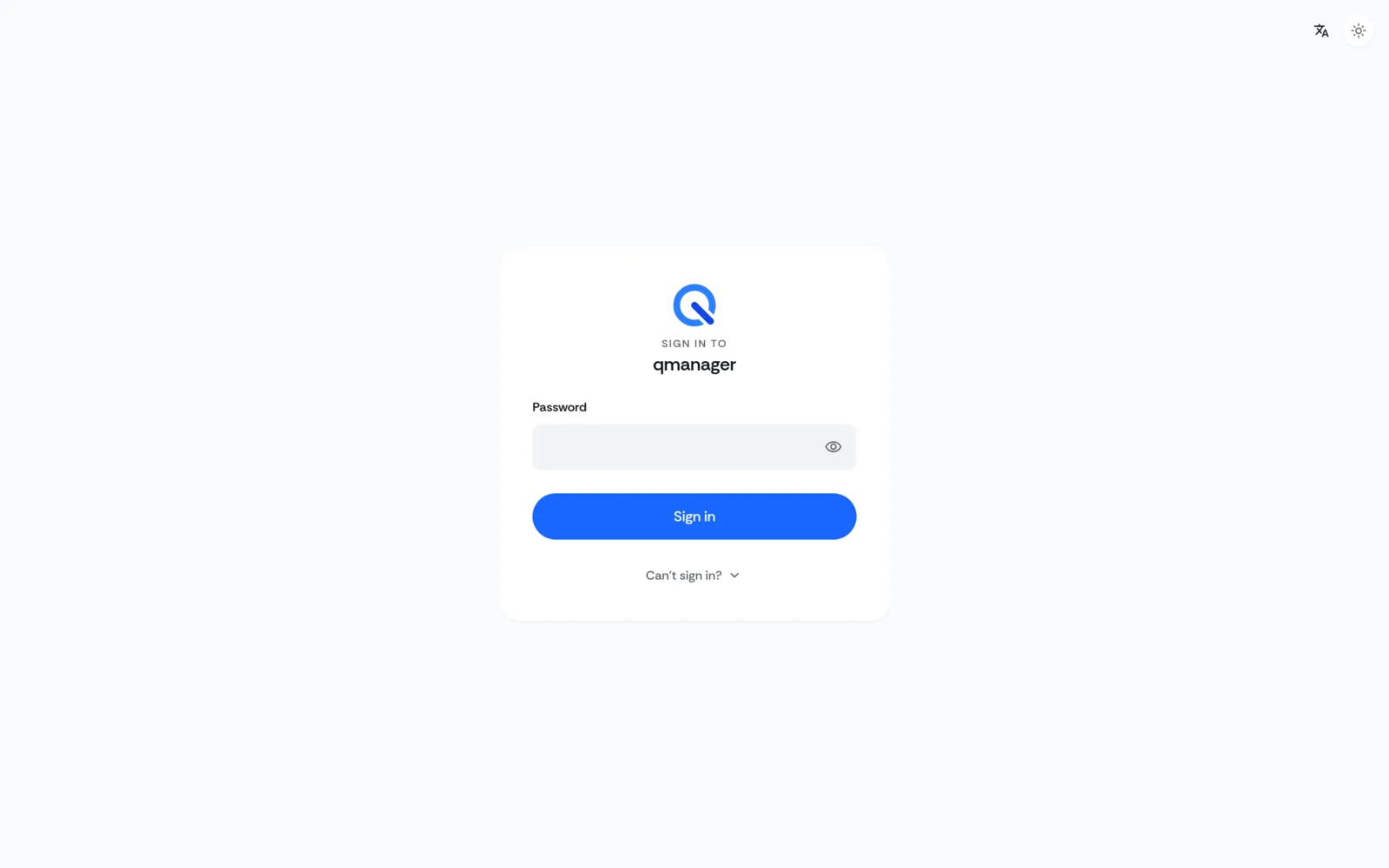
Default Access IP Addresses#
| Deployment Setup | Default IP | Protocol / Port | Default Login |
|---|---|---|---|
| RM551E Series (Custom OpenWRT) | http://192.168.224.1 (or 192.168.1.1/qmanager/) | HTTP :80 / HTTPS :443 | Uses modem / router root credentials |
| RM520N-GL Standalone Linux | http://192.168.225.1 | HTTP :80 / HTTPS :443 | Default user: admin / admin |
Initial Setup Wizard#
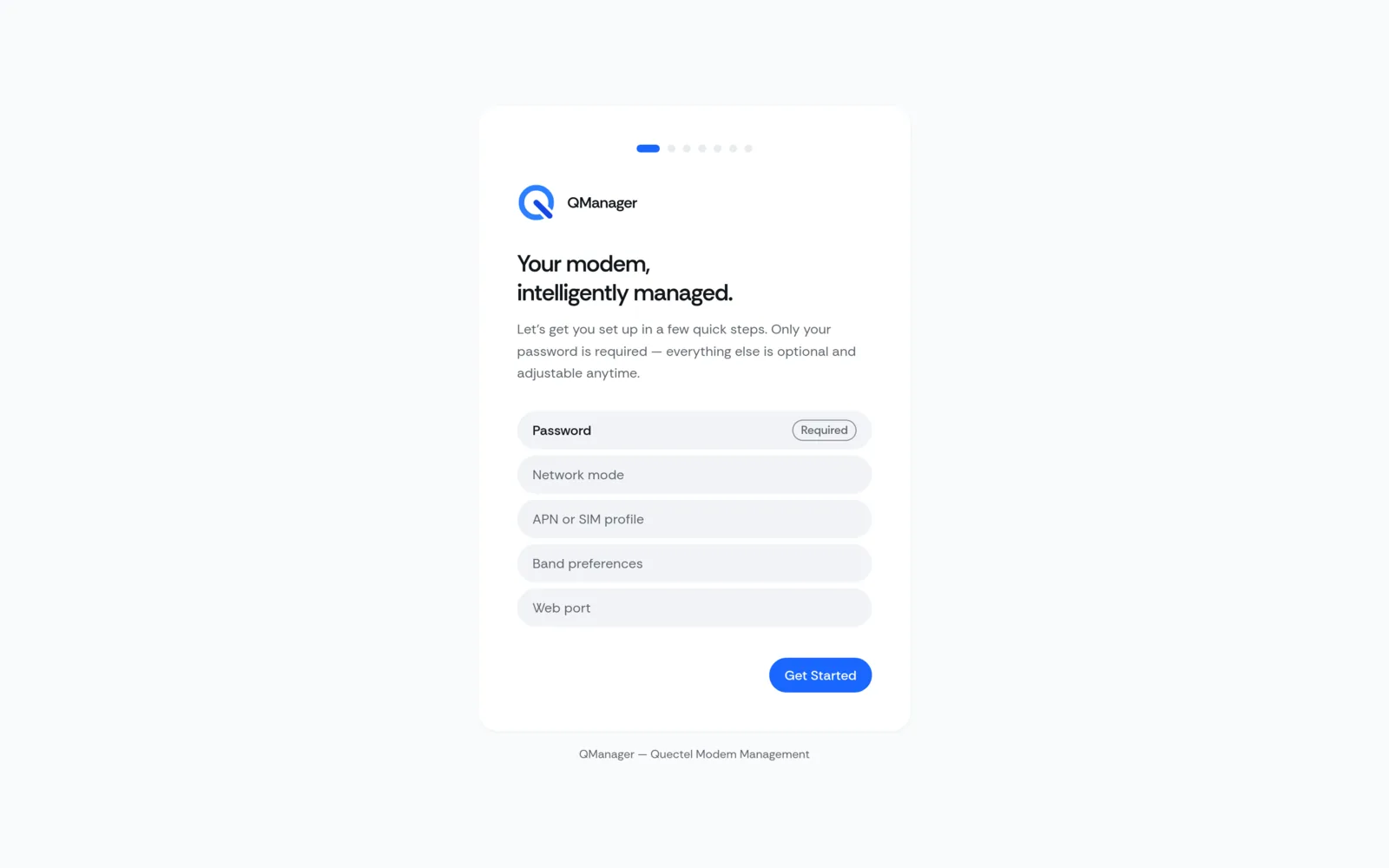
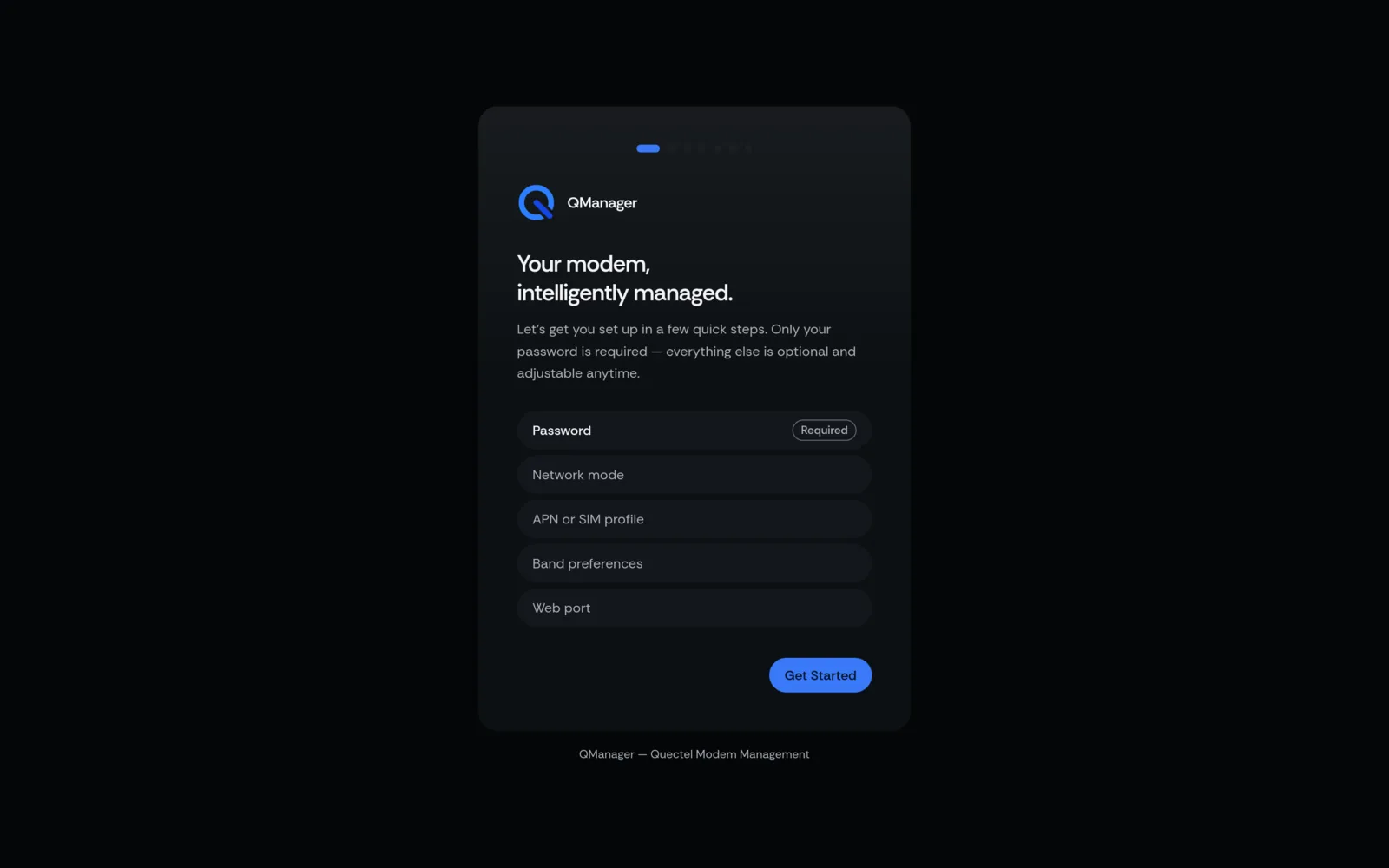
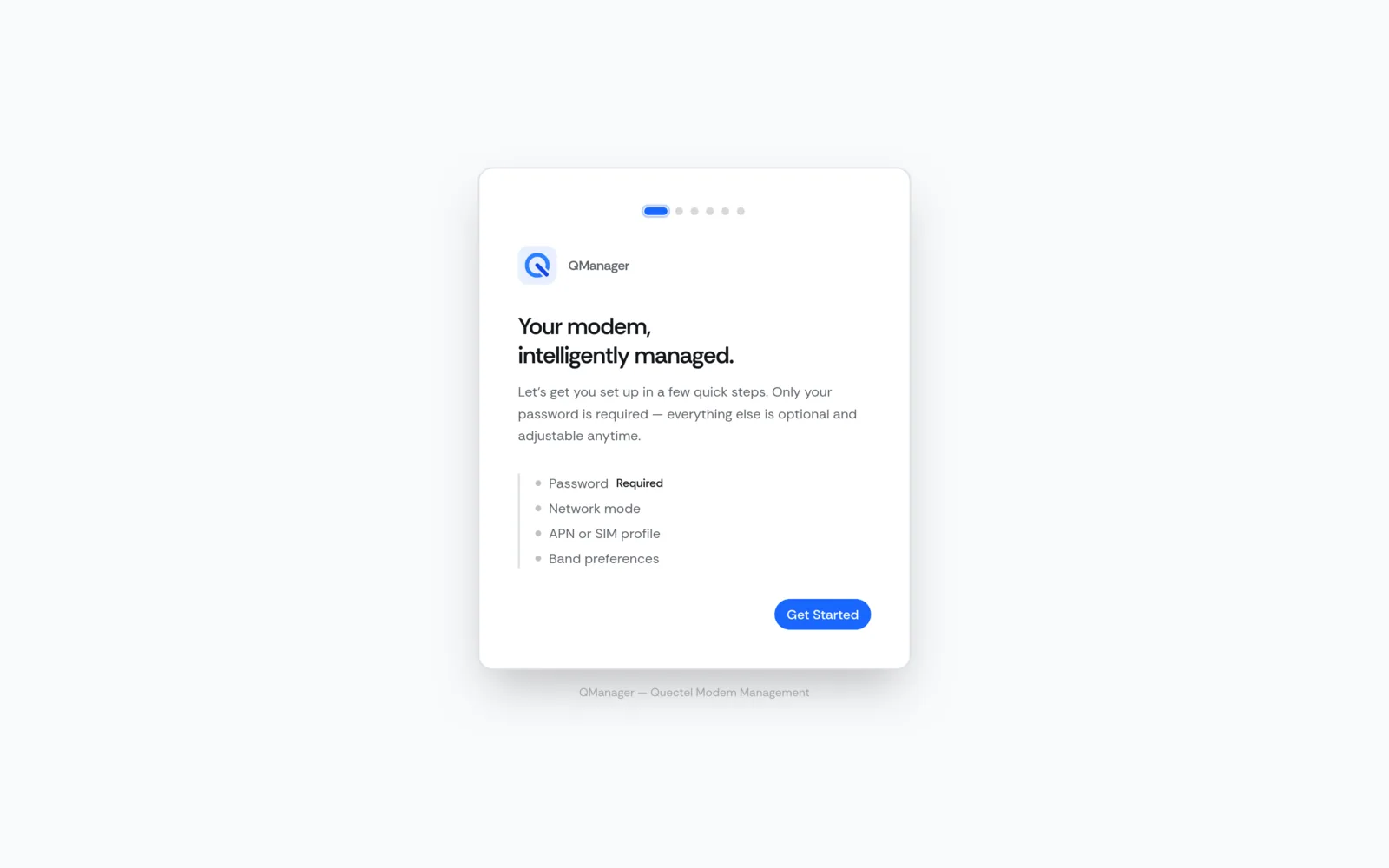
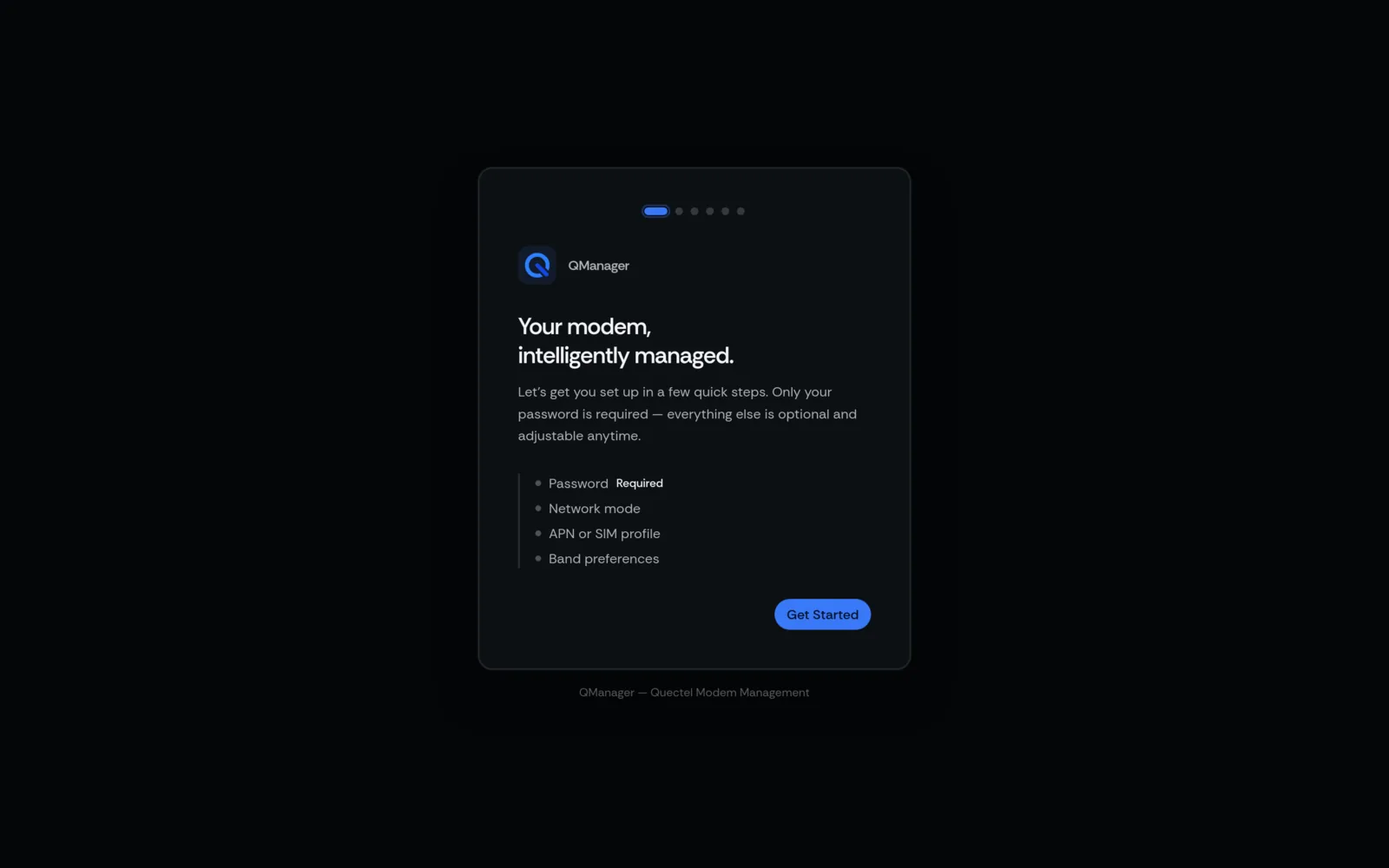
On first launch, QManager runs a 3-step configuration wizard:
- APN Setup: Select your cellular carrier preset (T-Mobile, AT&T, Verizon, Telkomsel, Vodafone, etc.) or enter custom APN credentials.
- TTL / Mangling: Enable IPv4 TTL and IPv6 Hop Limit mangling (recommended: 64 or 65) if your plan requires hotspot bypass.
- Serial Device Detection: Confirms successful handshake with modem control port (
/dev/ttyUSB2or/dev/mhi_DUN).
Authentication & Security#
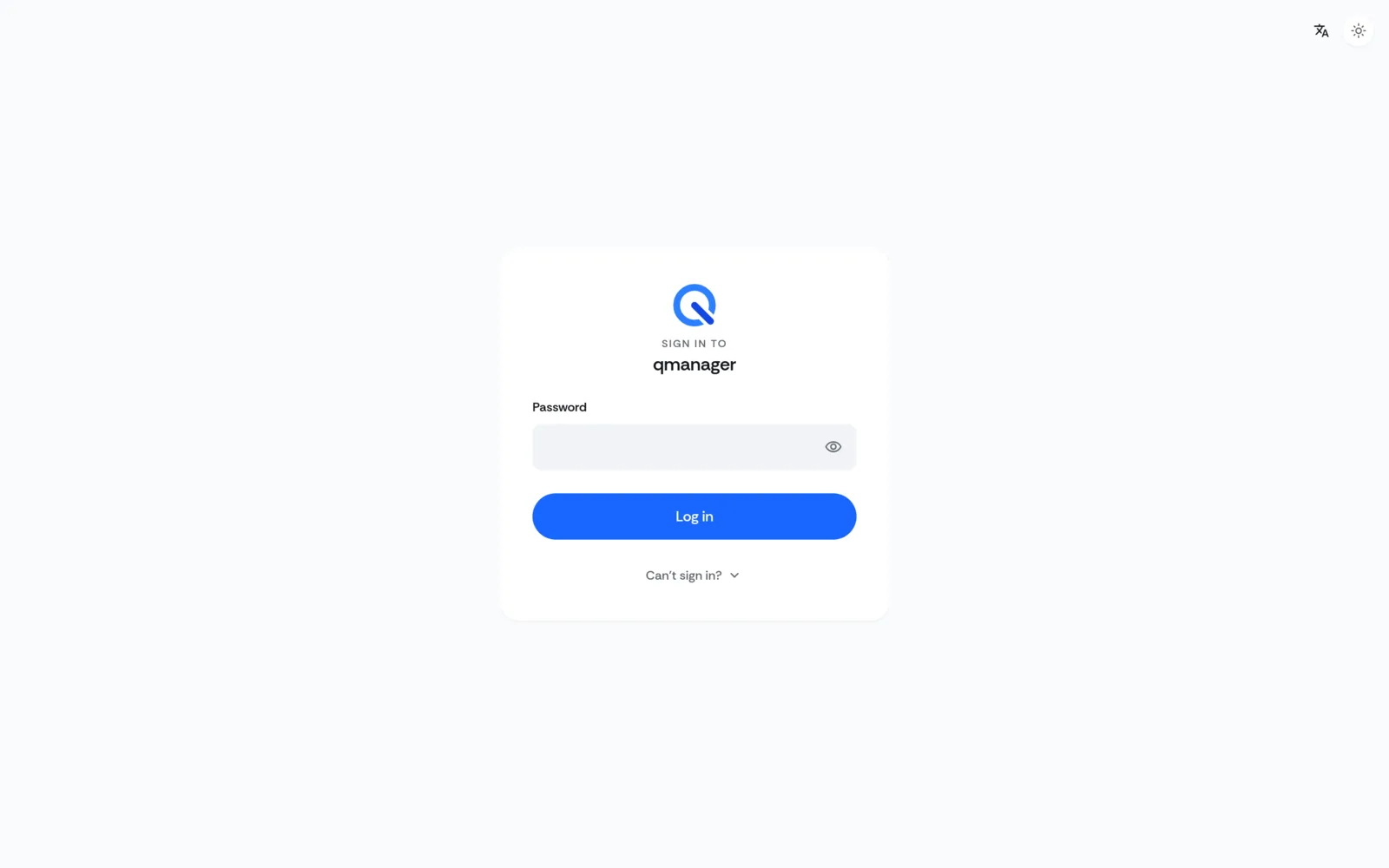
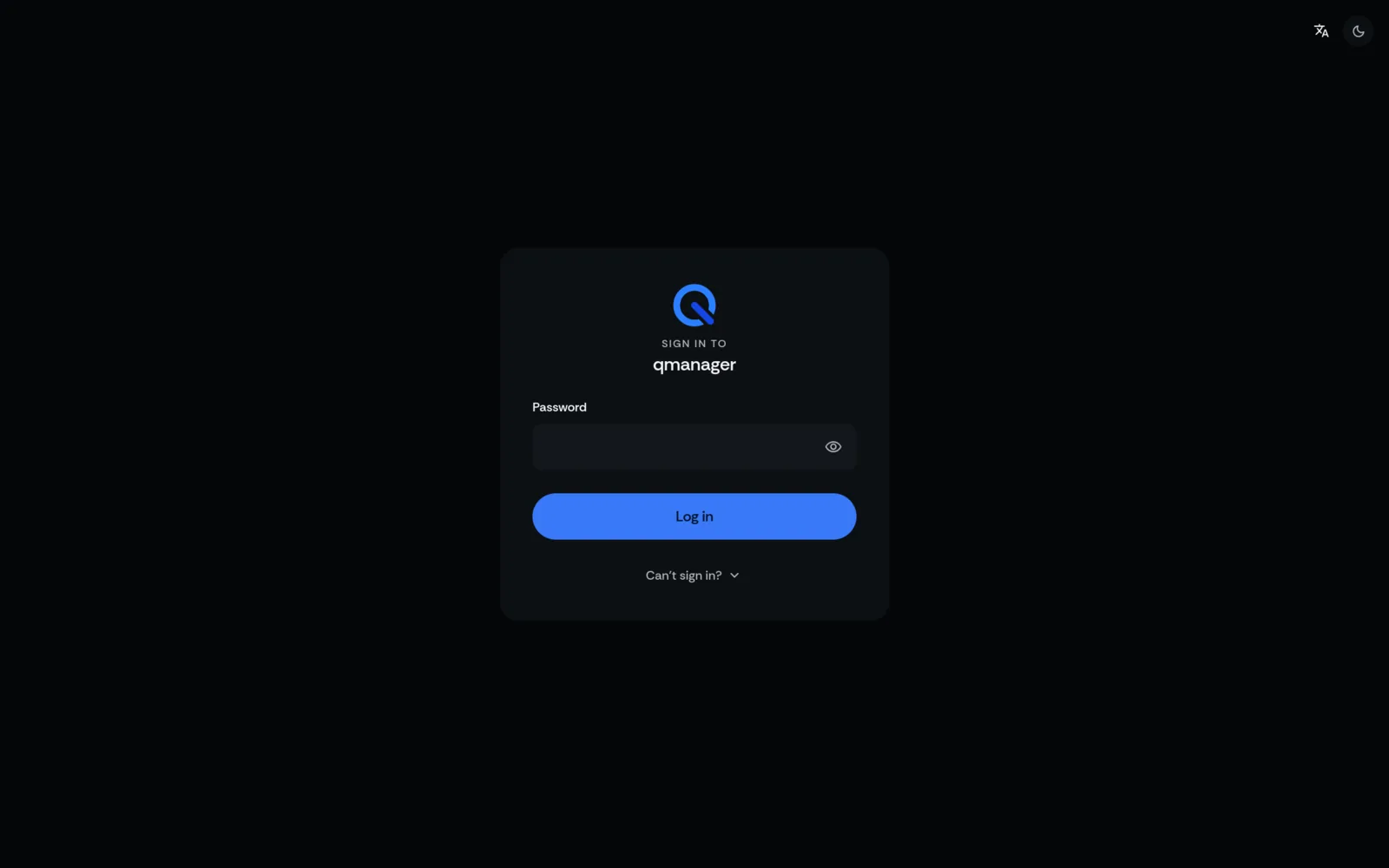
QManager employs cryptographically secured cookie sessions with HTTP-only flags and brute-force rate limiting:
- Sessions expire after 24 hours of inactivity.
- Failed attempts lock out after 5 tries for 3 minutes.
- To reset your password on RM520N-GL via terminal:
Shell
/usr/lib/qmanager/reset-credentials.sh
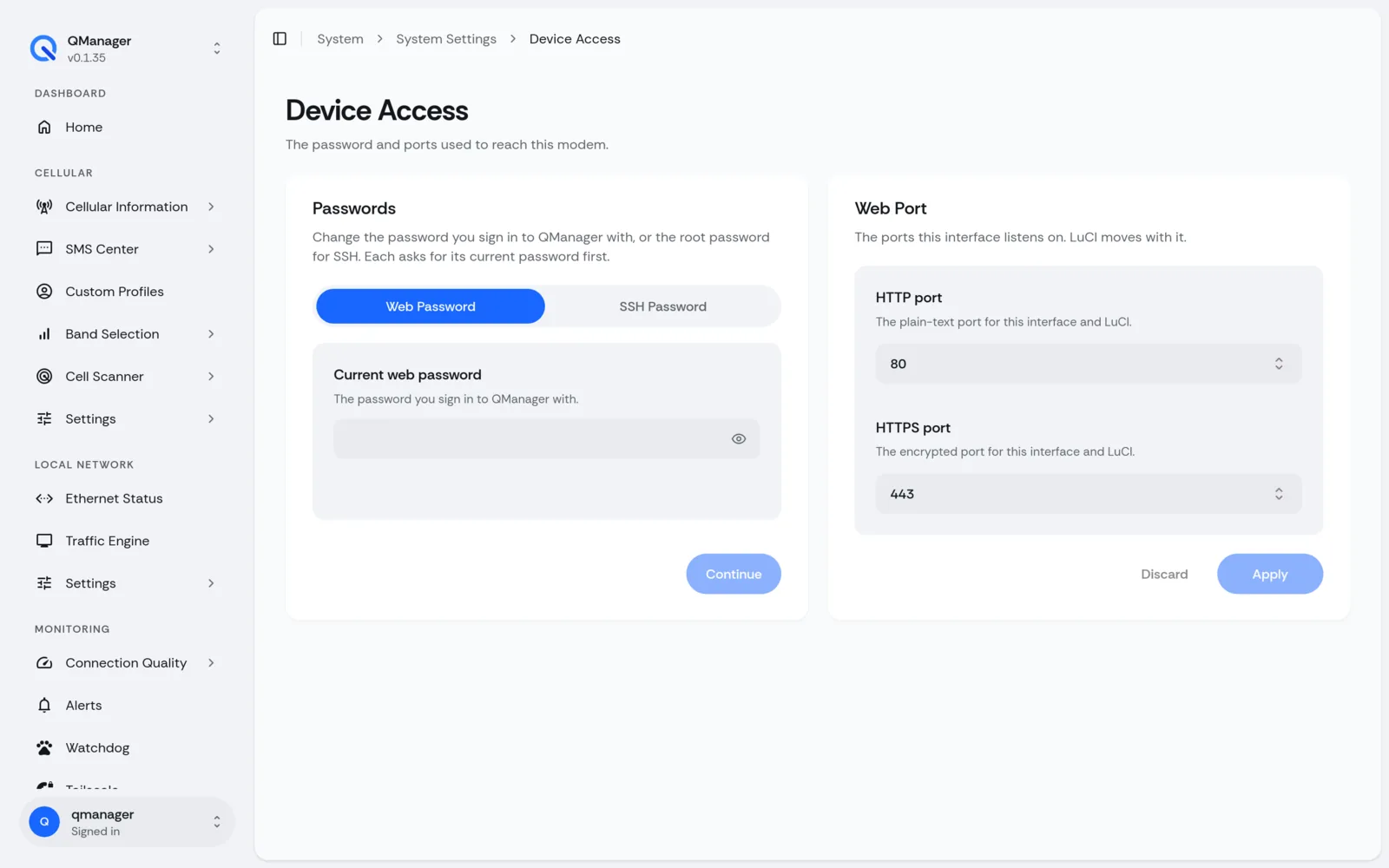
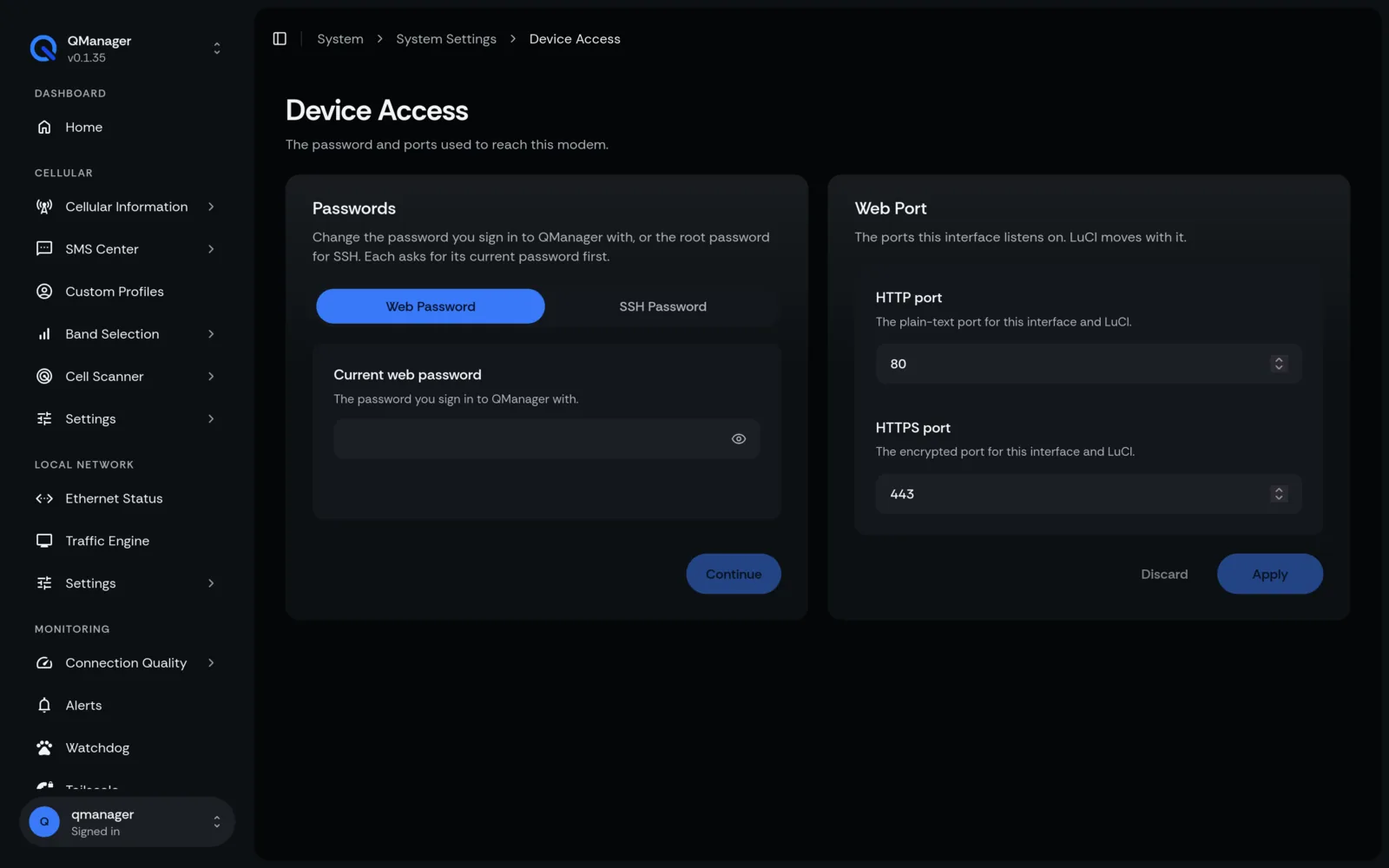
Changing Web Port (Avoid 80 Port Conflicts)#
If you are running OpenWRT LuCI on port 80 and wish to run QManager on a dedicated secondary port (e.g. 8080):
Edit /etc/config/uhttpd:
Shell
uci add uhttpd qmanager
uci set uhttpd.qmanager.listen_http='0.0.0.0:8080'
uci set uhttpd.qmanager.home='/www/qmanager'
uci commit uhttpd
/etc/init.d/uhttpd restart
Screens in QManager#