Tower & Cell Locking with Auto-Failover
Lock directly to specific cell towers by PCI and ARFCN, with scheduled switching and automatic link failover.
5 min read · Updated
Tower & Cell Locking with Auto-Failover
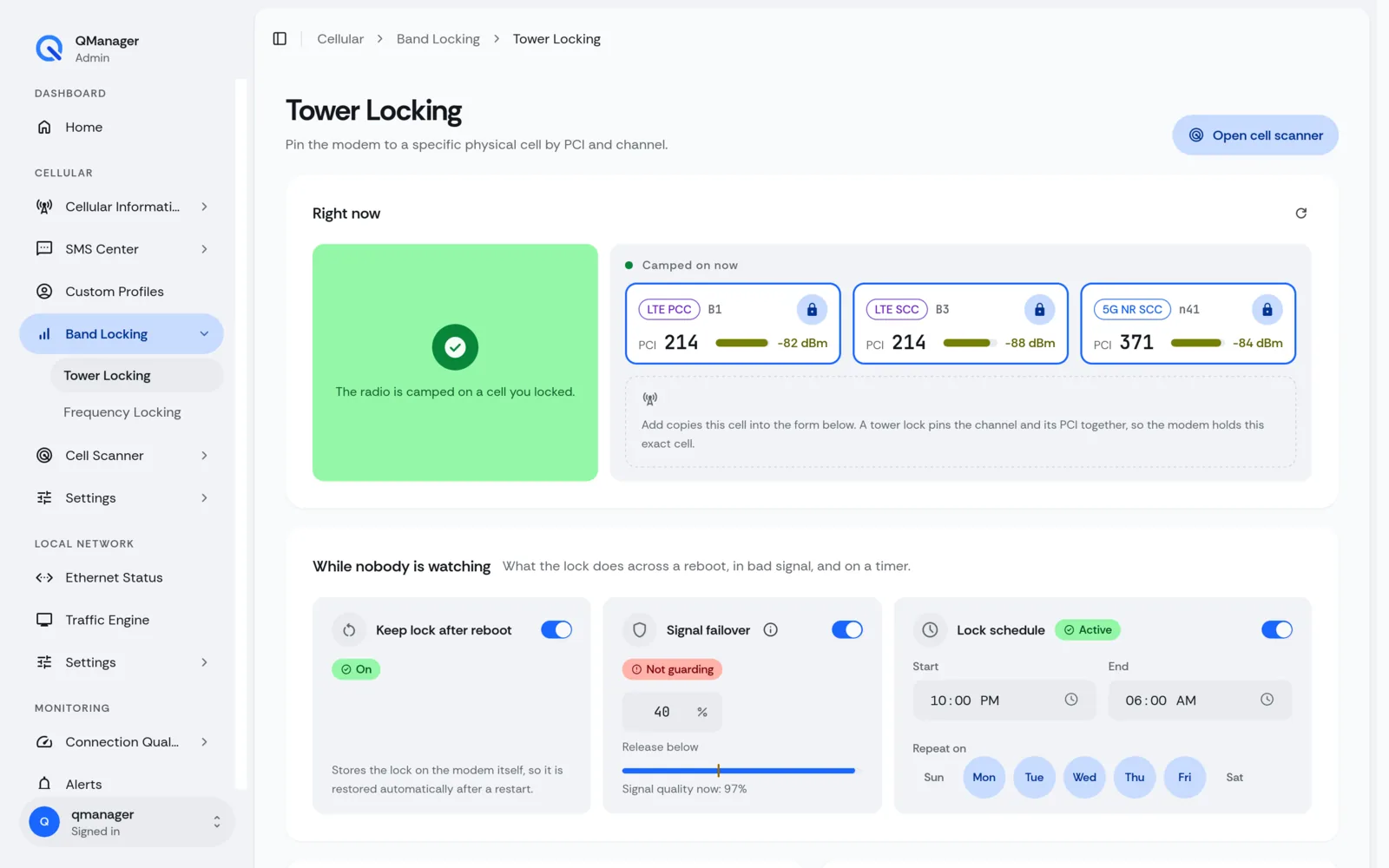
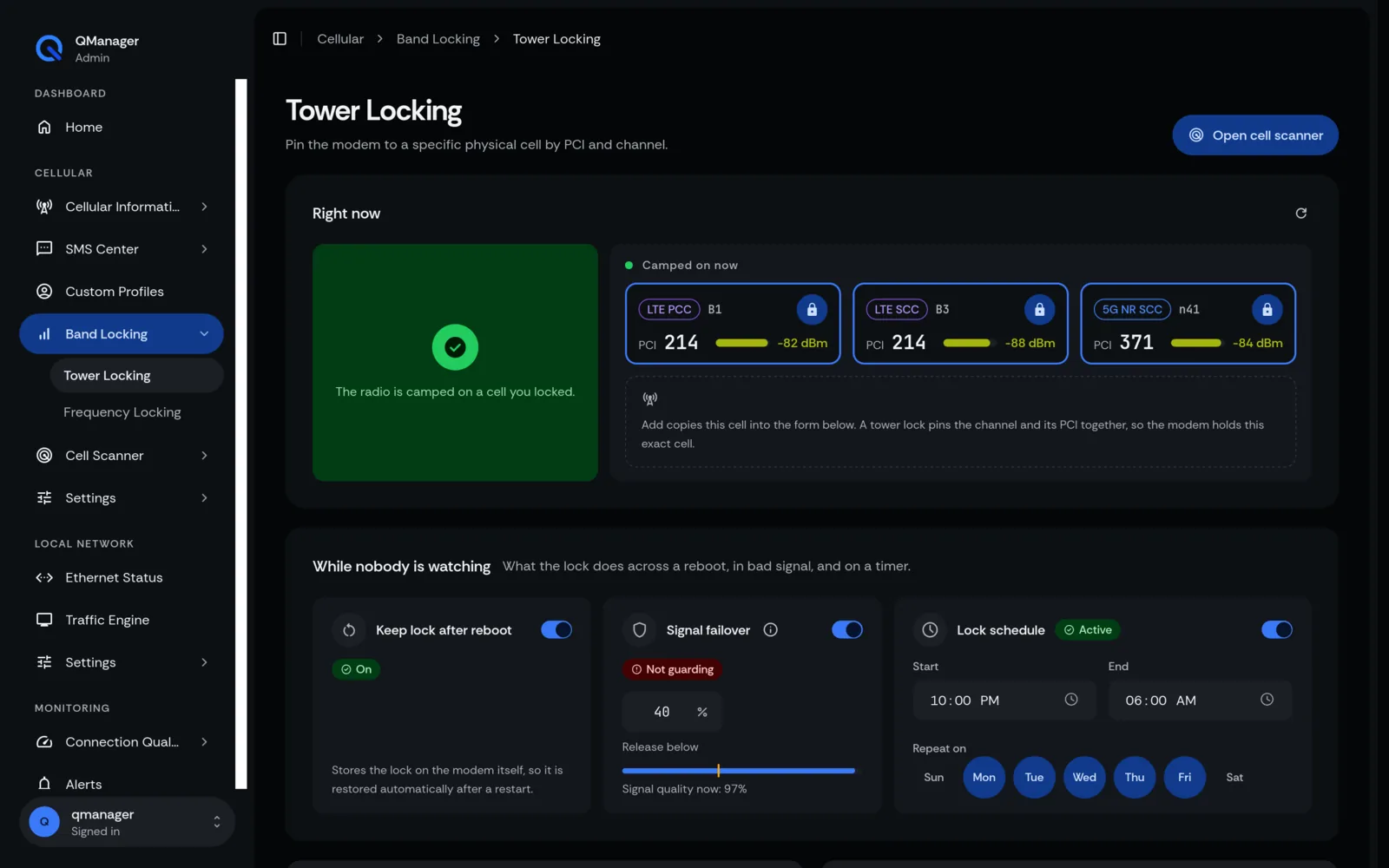
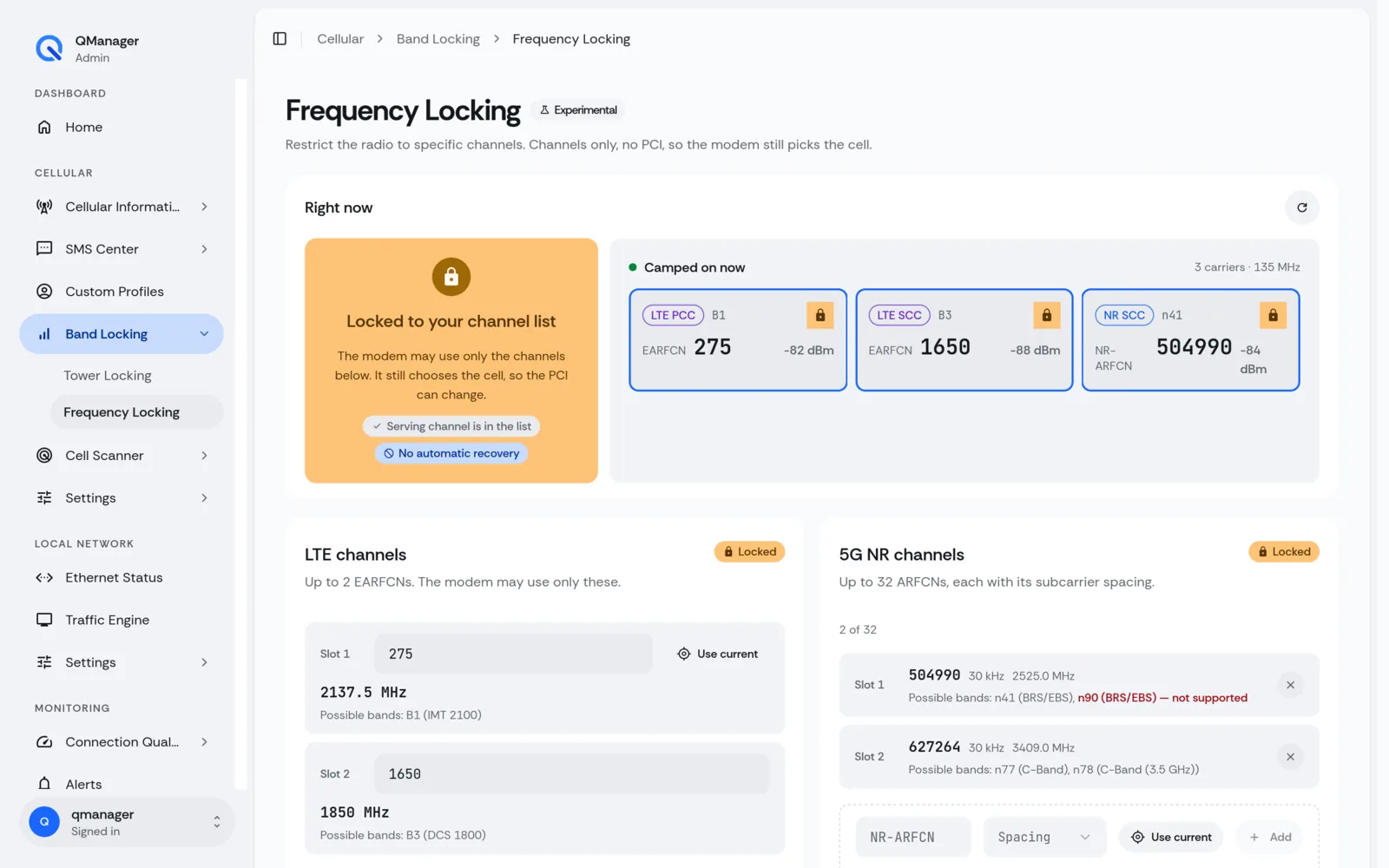
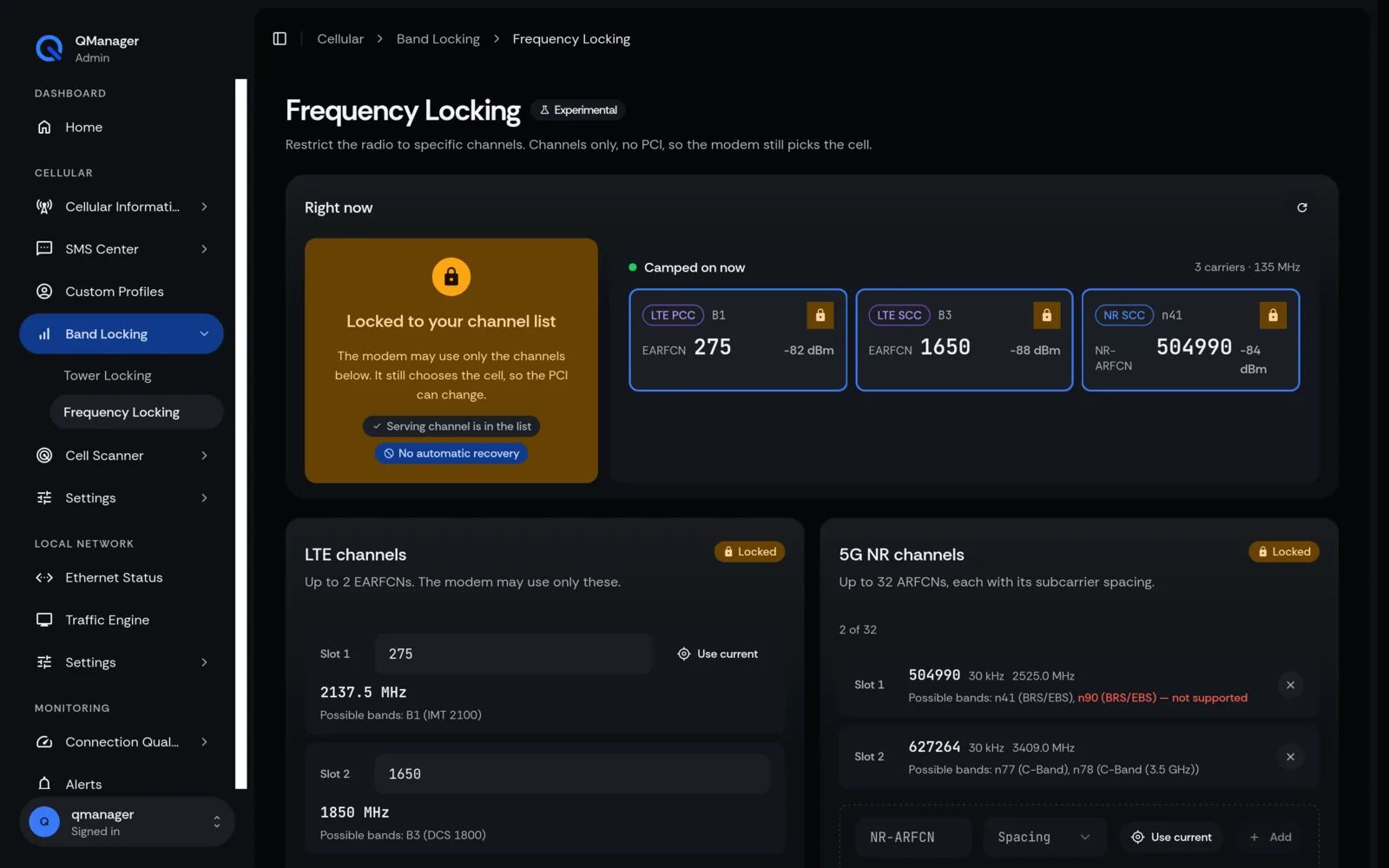
While band locking restricts the frequency channel, Tower Locking (Cell Lock) restricts the modem to a specific physical sector radio identified by its Physical Cell ID (PCI) and Absolute Radio Frequency Channel Number (EARFCN/NR-ARFCN).
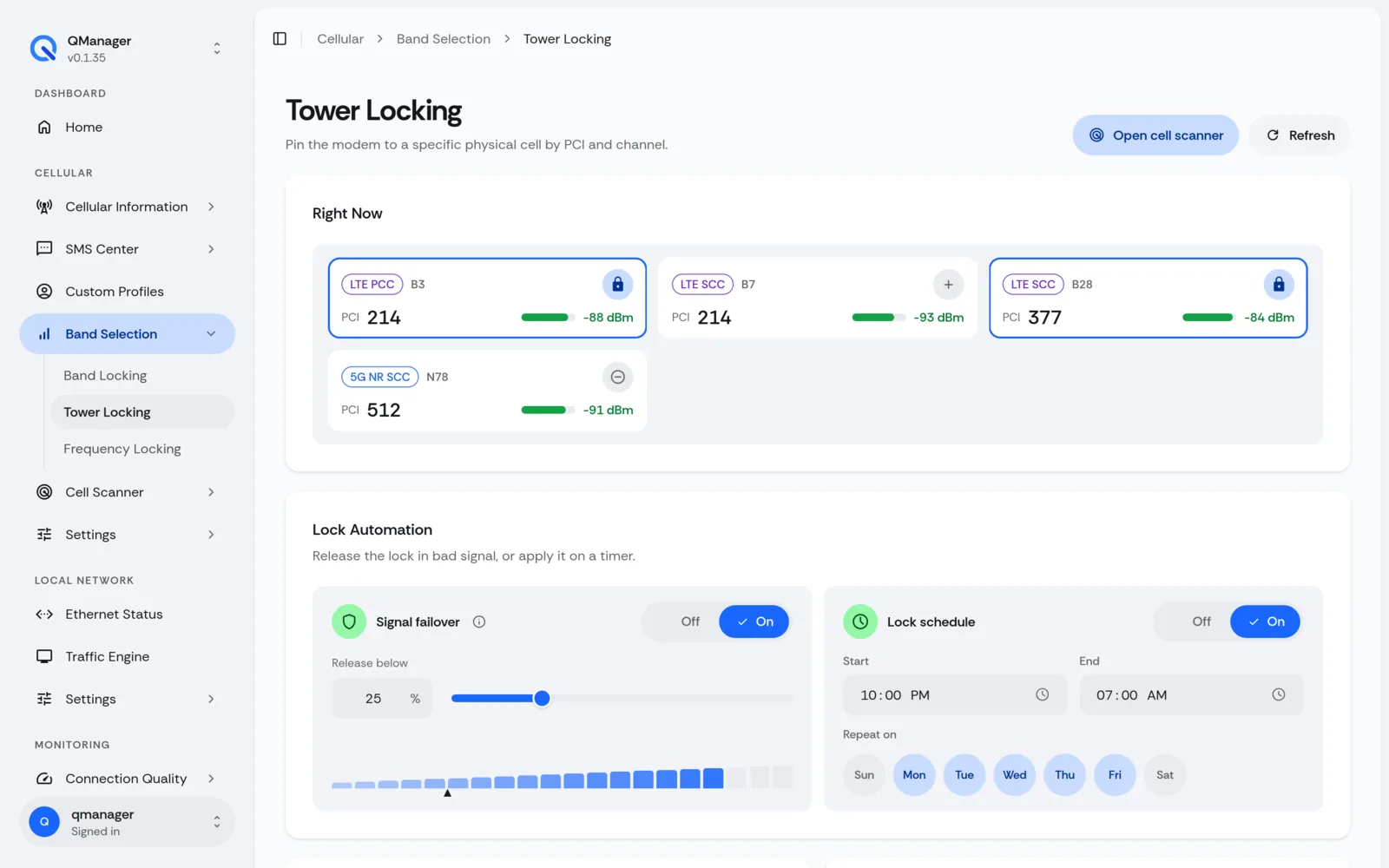
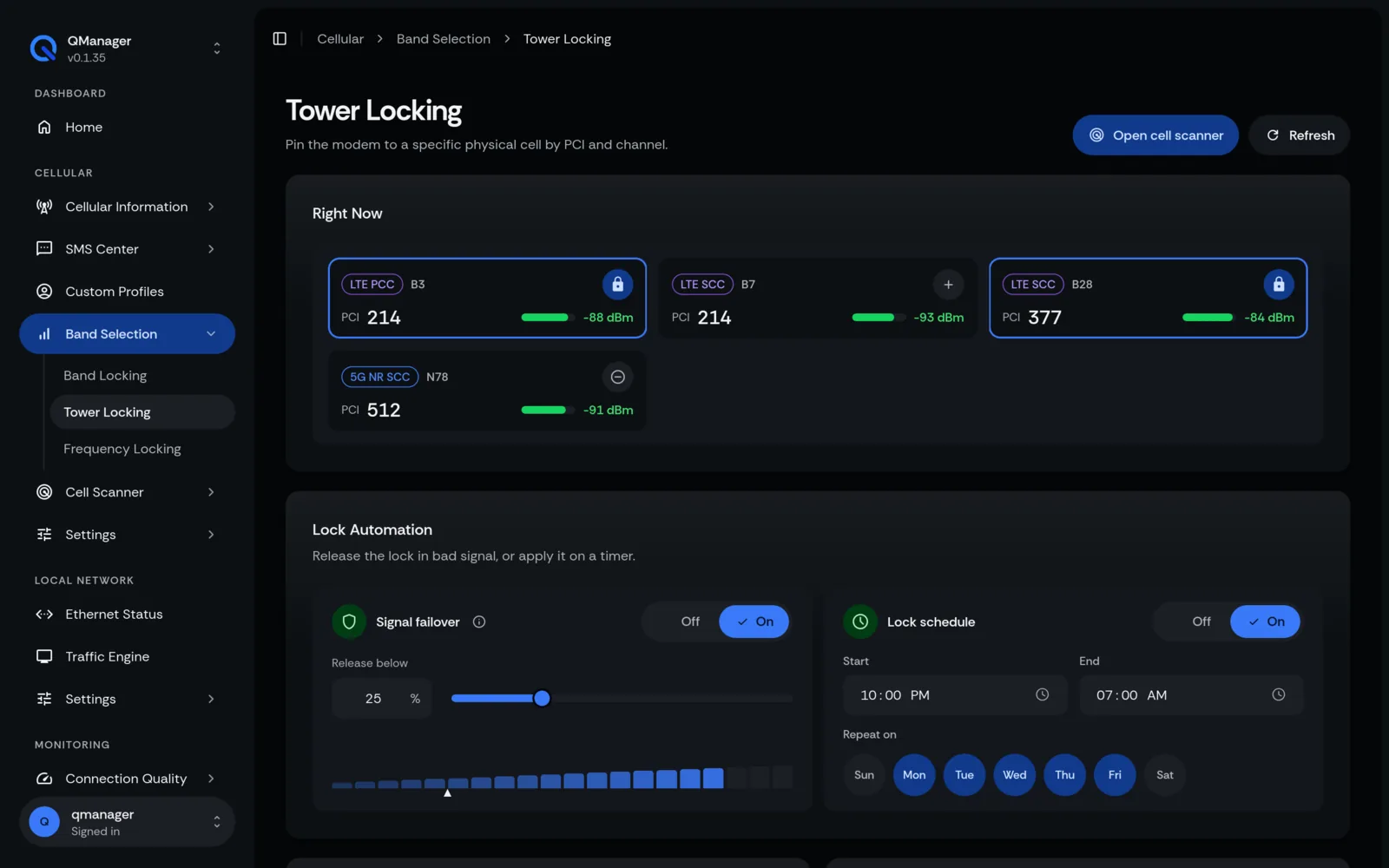
What is Tower Locking (Cell Lock)?#
If you live between two cellular towers—one close with high load, and another slightly further with 10x faster speeds—the modem will default to the closer tower. Cell locking forces the modem to ignore the close tower and connect exclusively to the distant, high-speed tower.
Identifying Target Cell Towers#
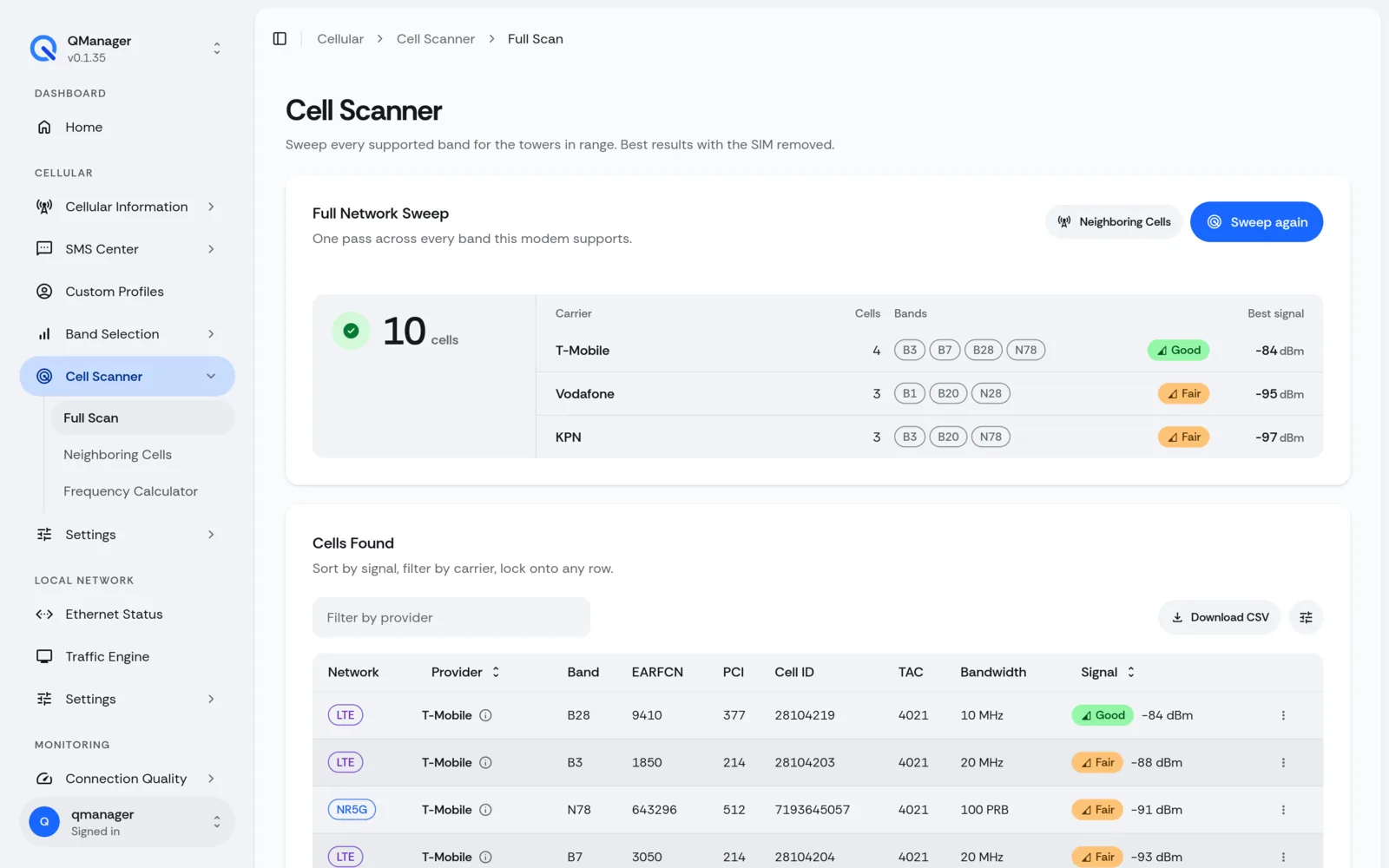
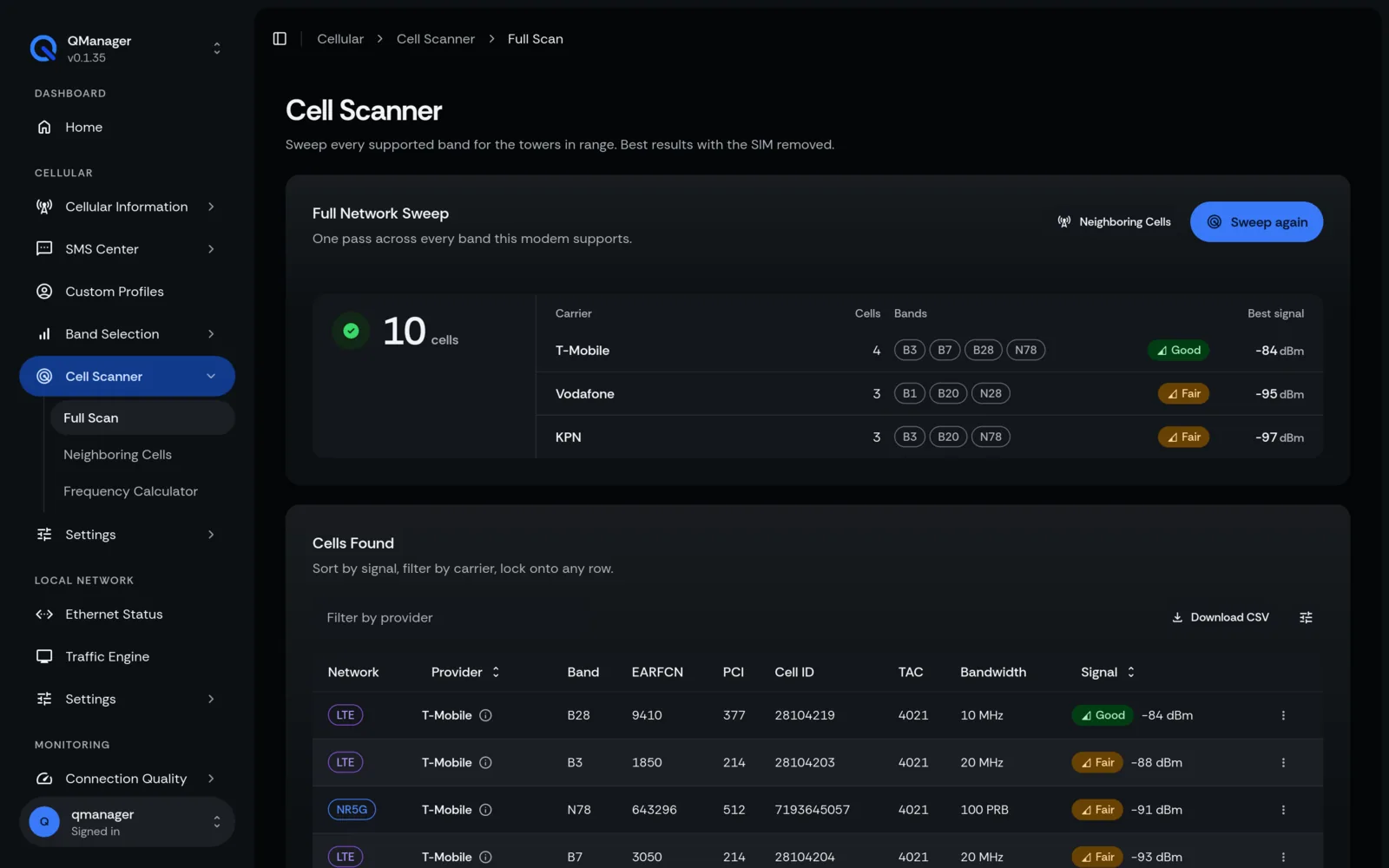
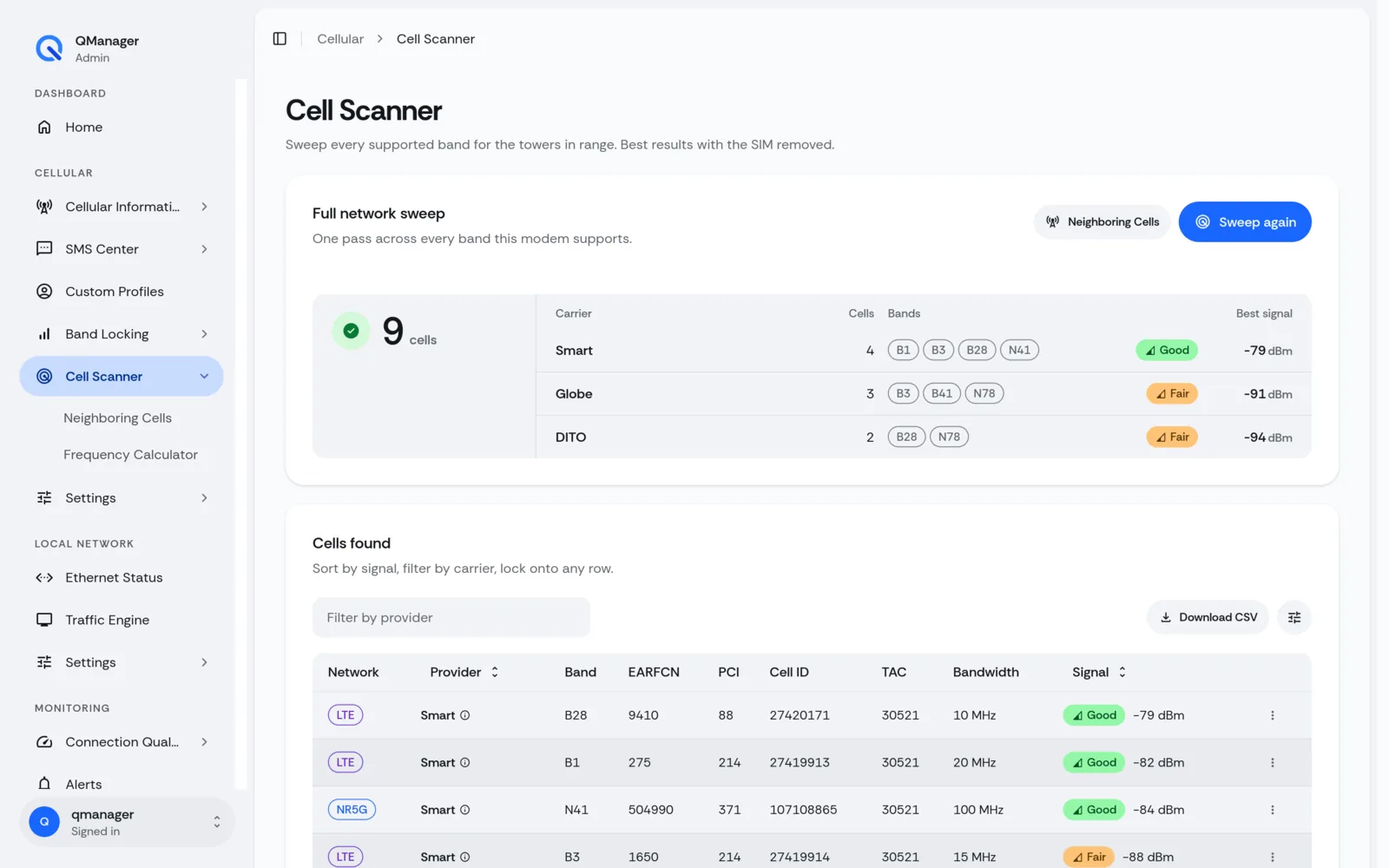
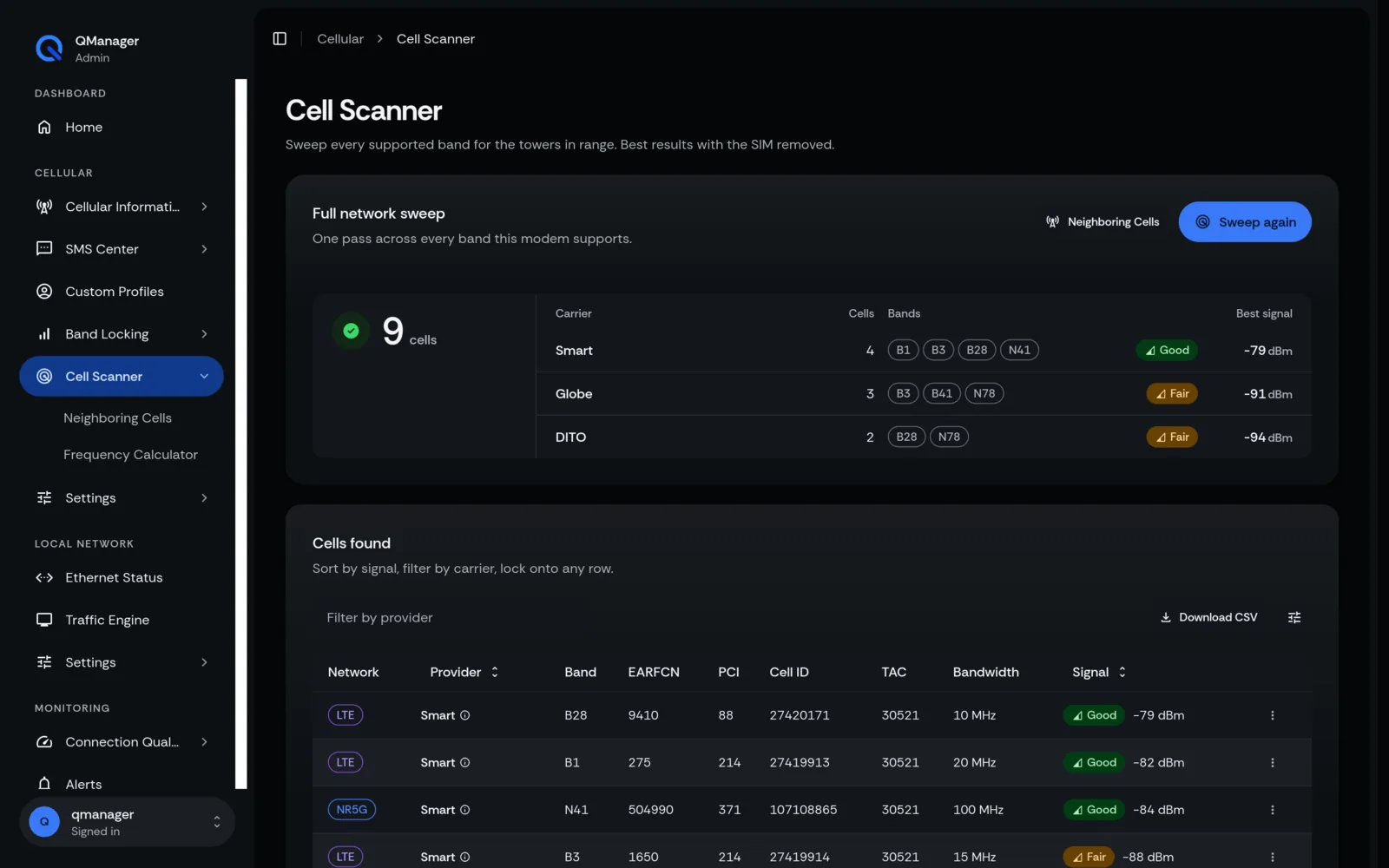
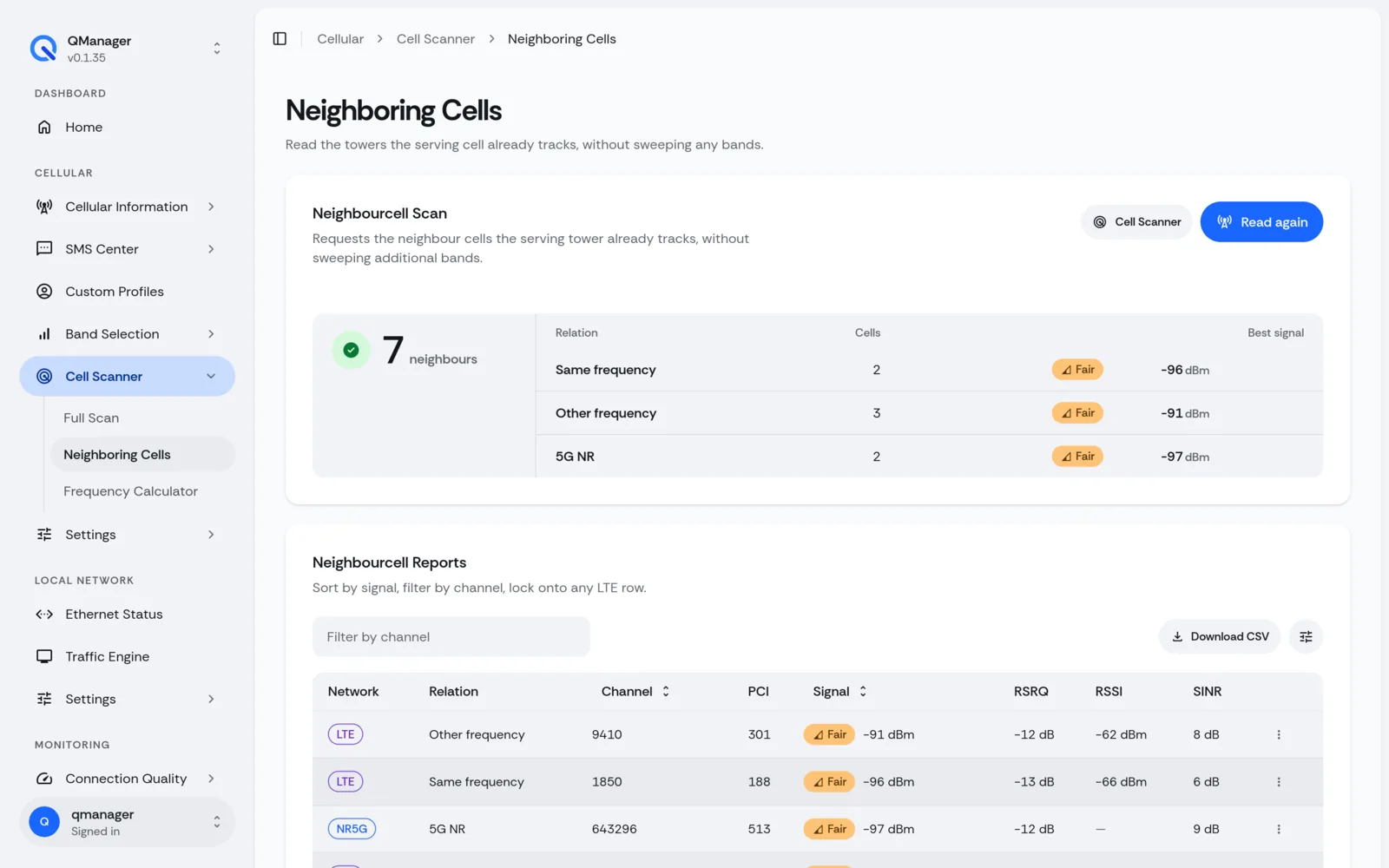
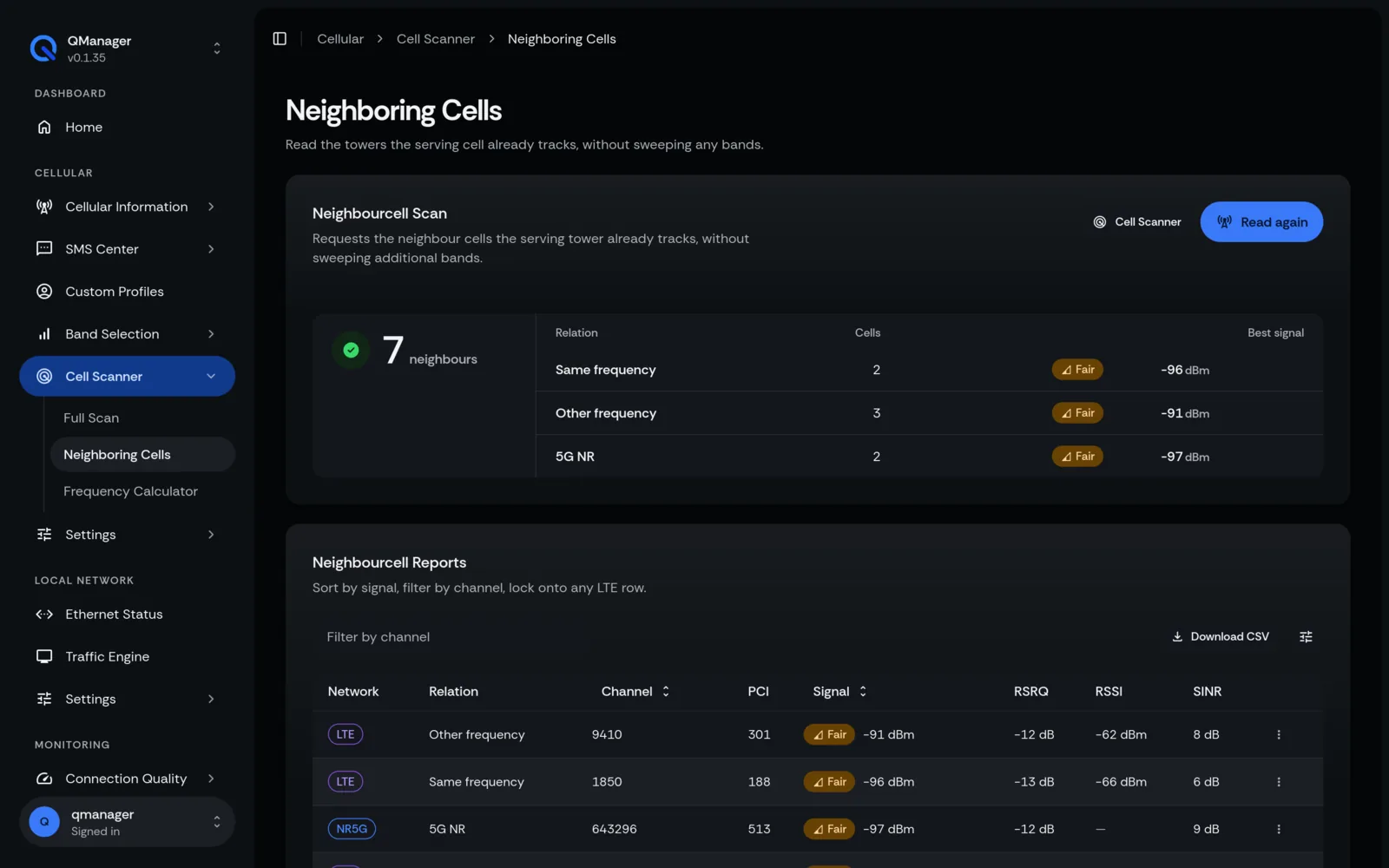
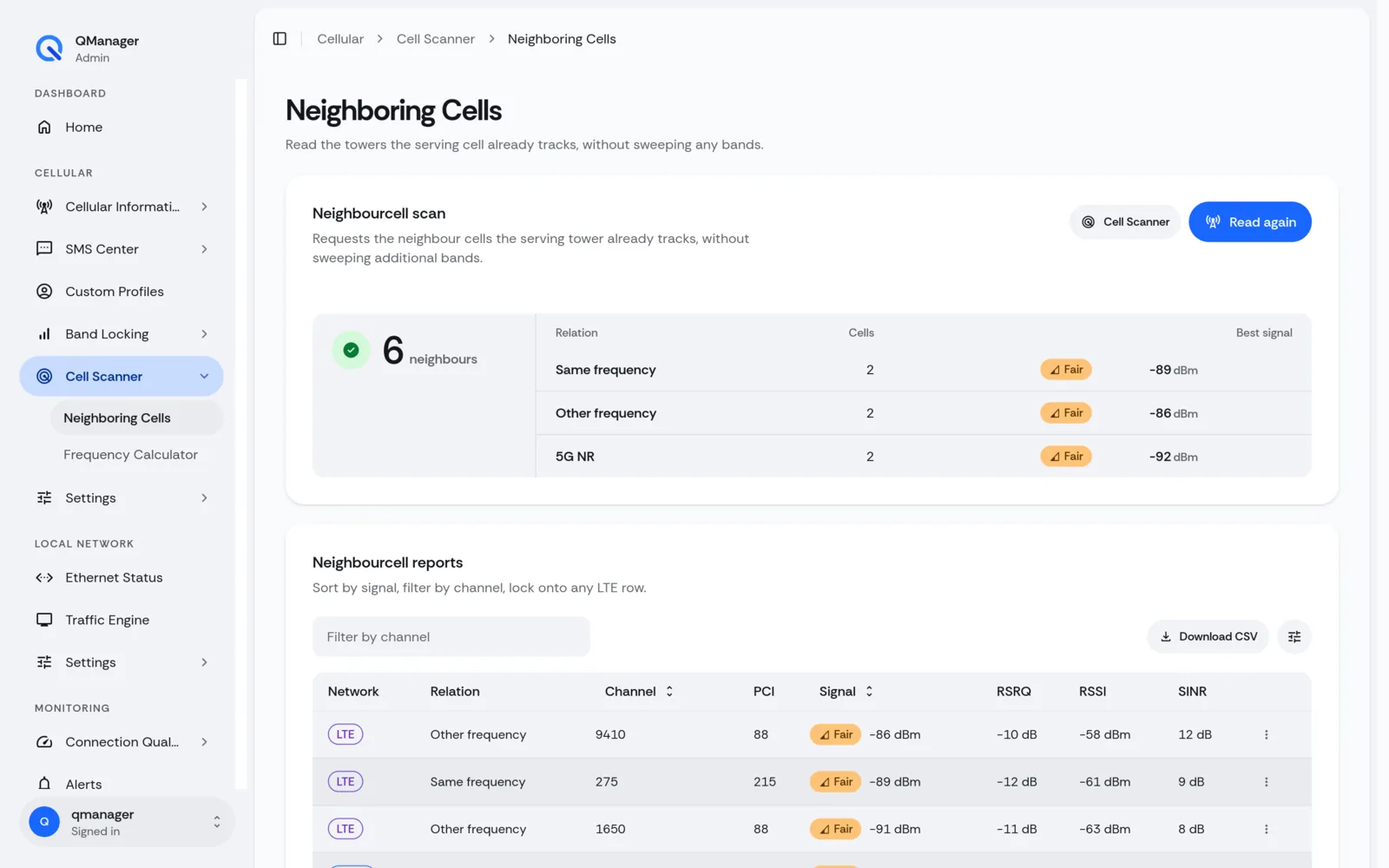
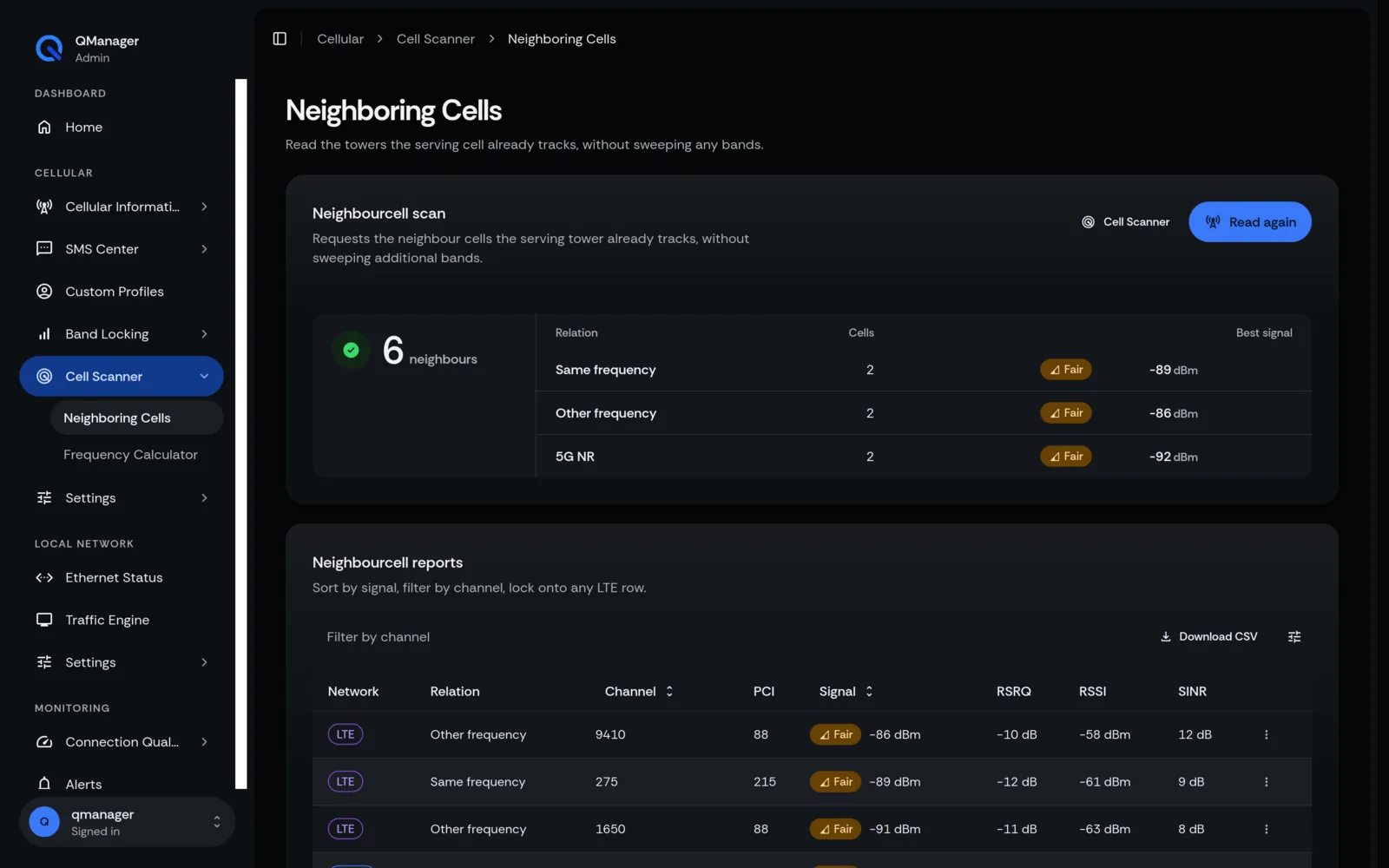
- In QManager, go to Cellular > Cell Scanner.
- Click Scan Neighbor Cells.
- The table lists all serving and neighbor cells detected by the modem's radio:
- Cell Type: LTE or NR5G
- PCI: Physical Cell ID (e.g.
184) - EARFCN / ARFCN: Frequency channel (e.g.
66536for B66,518970for n41) - RSRP: Signal strength of each individual tower sector
Configuring Cell Lock in QManager#
- In Cellular > Tower Lock, click Add Cell Lock.
- Enter the PCI and EARFCN/ARFCN.
- Select the cellular technology:
LTEorNR5G. - Click Apply Lock.
Under the hood, QManager issues:
AT+QNWLOCK="common/4g",<num_cells>,<earfcn>,<pci>
# Or for 5G:
AT+QNWLOCK="common/5g",<pci>,<arfcn>,<scs>,<band>
Auto-Failover on Cell Outage#
What happens if maintenance takes down your locked tower? QManager's background watchdog continuously checks link ping:
- If the locked cell drops off the air for more than 3 consecutive minutes, QManager automatically clears the cell lock (
AT+QNWLOCK="common/4g",0), allowing the modem to roam to any available tower until the primary tower returns!
Screens in QManager#